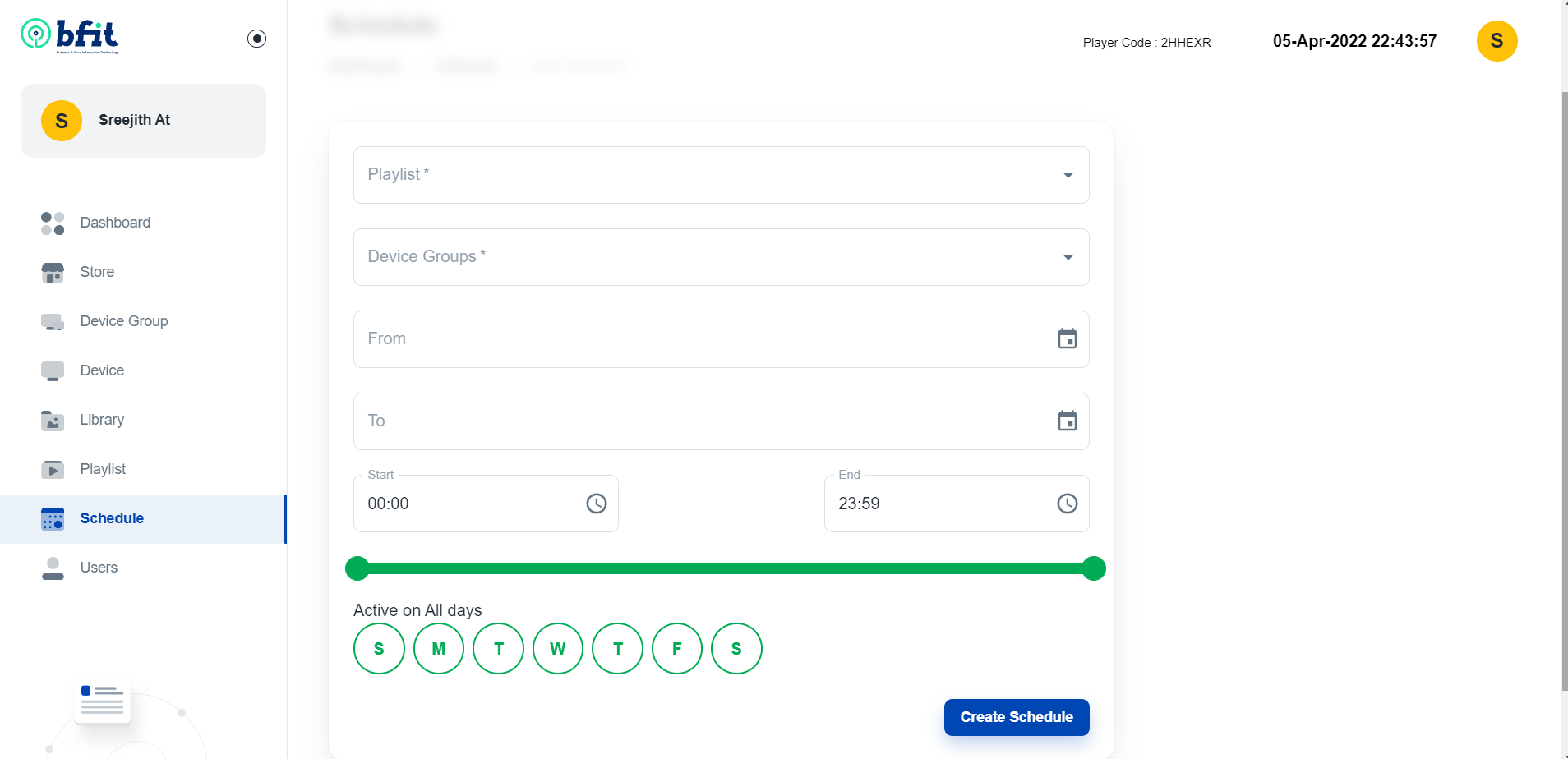
Add a Schedule
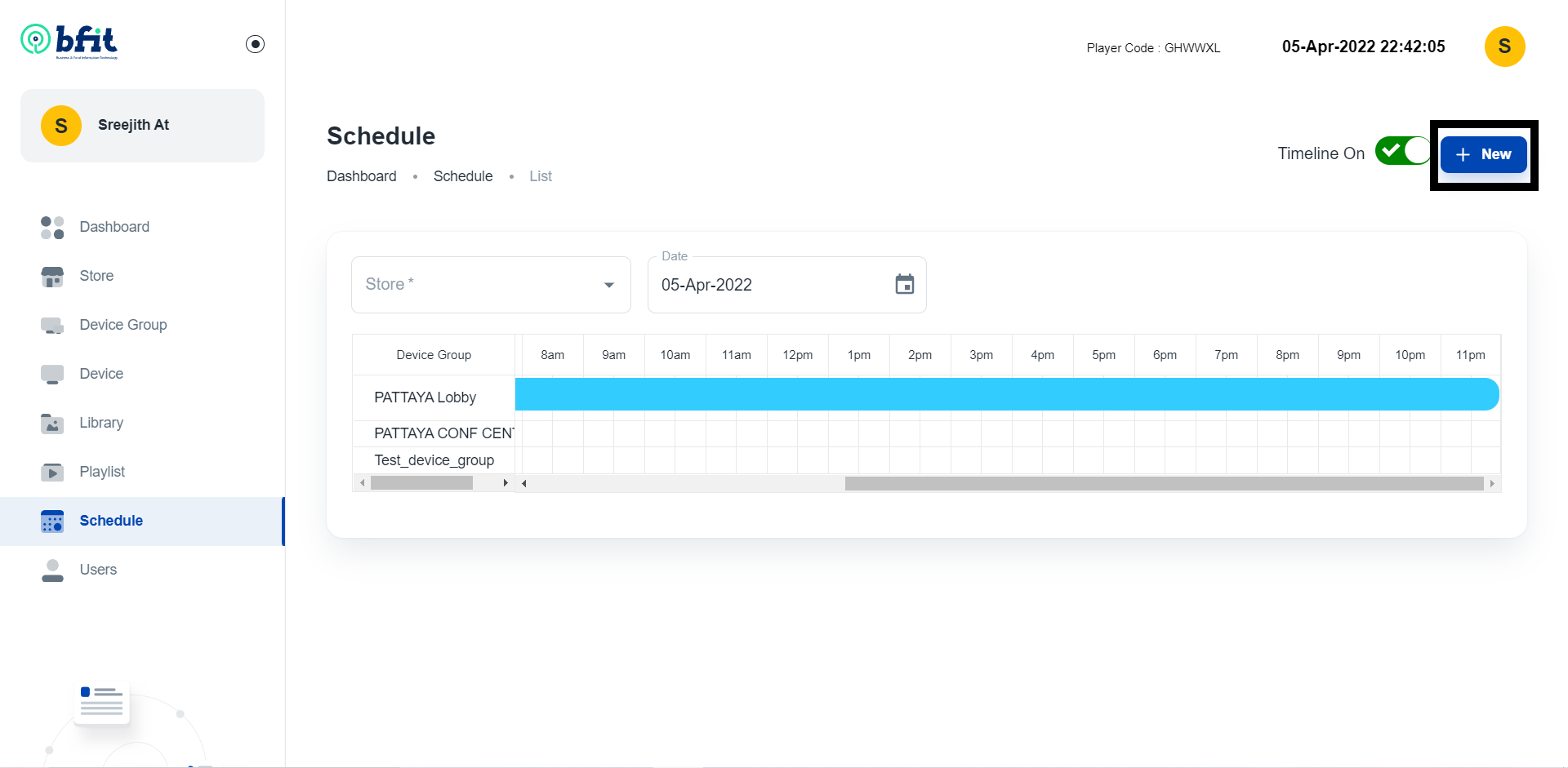
Press +New to add a new schedule. The “Schedule” tab has two different views – “Timeline On” and “Timeline Off”. You can toggle this using the switch to the left of the +New button. Set the start and finish dates for the schedule. And finally set the time the playlist begins and ends every day, making sure the times do not overlap with any other schedule.
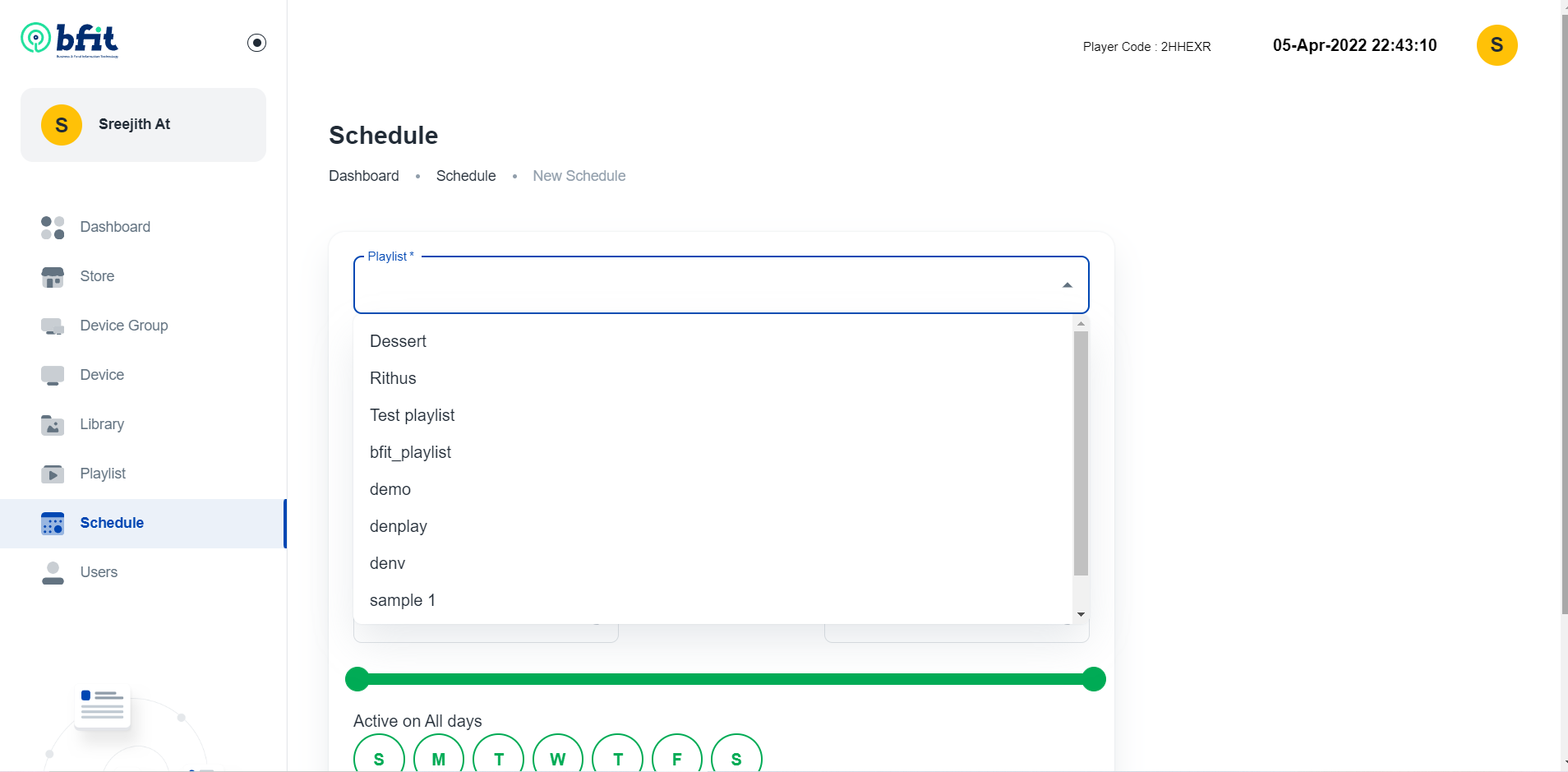
Next step is to select the playlist from the list. It shows all the playlist we added from Playlist option. Use the drop-down lists to select the desired playlist.
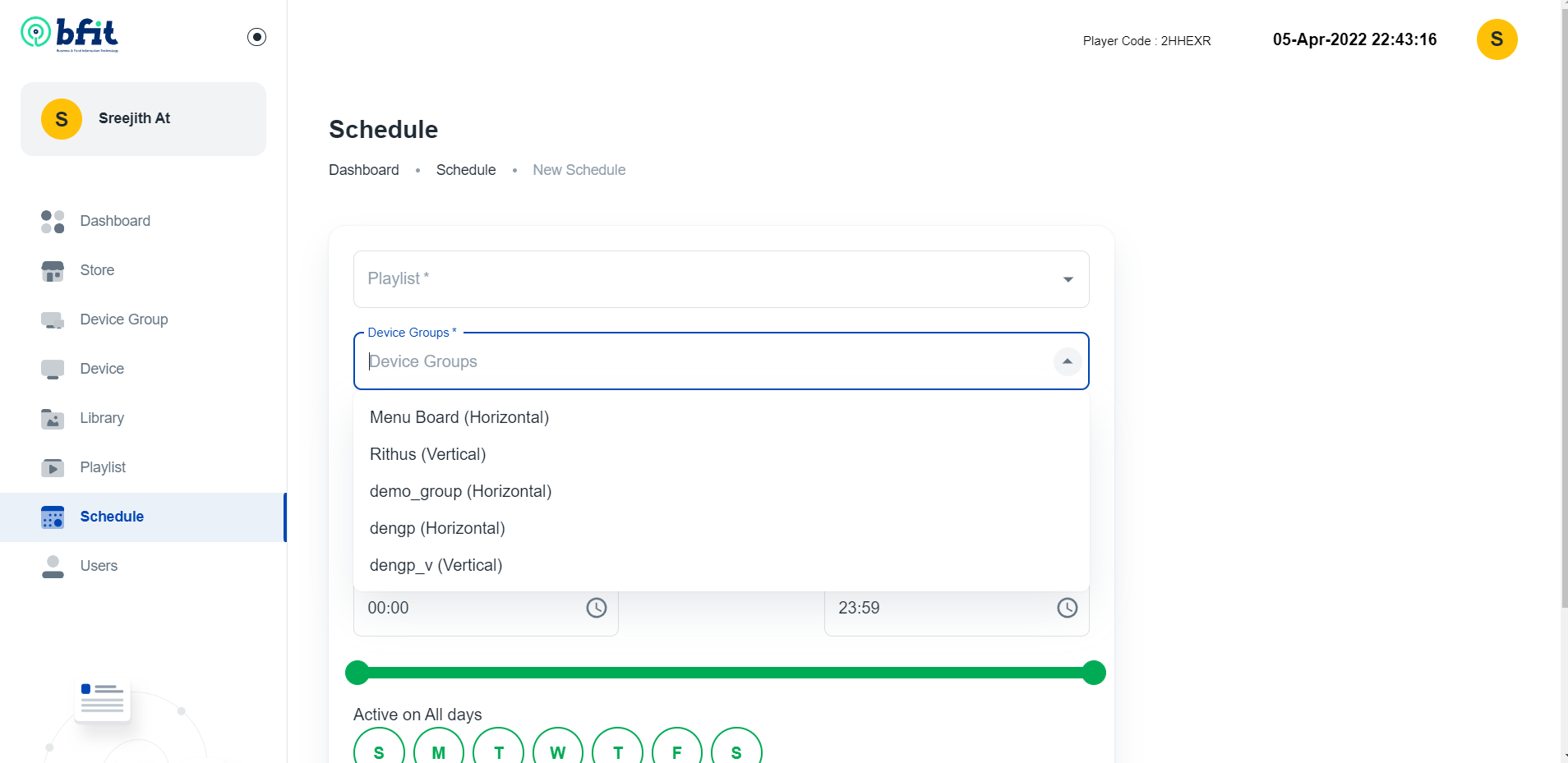
Use the drop-down lists to set the appropriate device group.
From and To determines the start date and end date for the playlist. Finally set the time the playlist begins and ends every day, making sure the times do not overlap with any other schedule.We can also choose the days of a week in which the playlist is active/inactive